Element X iOS 项目开发环境配置与编译打包完全指南:从依赖安装到签名配置的完整避坑记录

IOS 关于 element-x-ios-develop SwiftUI 项目打包的完整踩坑教程

本文记录了从零开始配置、编译 Element X iOS(一个基于 SwiftUI 和 Matrix Rust SDK 的下一代开源聊天客户端)项目时,所遇到的一系列典型问题及其解决方案。涵盖环境依赖、证书签名、扩展配置等核心难题。

问题一:Ruby 环境与项目依赖安装失败

报错信息Could not locate Gemfilecocoapods is not currently included in the bundle

问题原因
Element X iOS 项目使用 Bundler 来管理 Ruby 工具链(如 fastlane),确保团队开发环境一致。直接使用 sudo gem install 安装的包是全局的,与项目 Gemfile 中锁定的版本可能冲突,导致后续命令失败。

解决方案
核心是使用 bundle exec 来运行项目锁定的工具版本。

1
2
3
4
5
6
7
8
9
10
11
12
# 1. 进入项目根目录
cd /path/to/element-x-ios-develop

# 2. 使用 Bundler 安装 Gemfile 中指定的 Ruby 工具
# 这会根据 Gemfile.lock 安装正确版本的 fastlane 等
bundle install

# 3. 使用 Bundler 来运行 CocoaPods 安装 iOS 依赖
# 这样会使用项目指定的 CocoaPods 版本,避免版本冲突
bundle exec pod install

# 如果第3步失败,提示找不到 cocoapods,需要将其加入 Gemfile

Read More

Sudoku Game Privacy Policy_ Zero Personal Data Collection, Pure Gaming Experience

Sudoku Game Privacy Policy: Zero Personal Data Collection, Pure Gaming Experience

Last Modified Date: November 5, 2025

1. Introduction

This privacy policy applies to the Sudoku game (hereinafter referred to as the “Game”) you are using. Our core commitment is: the Game does not collect any of your personal privacy information at any stage of your use. We prioritize protecting your data security and privacy rights, allowing you to enjoy the pure fun of Sudoku puzzles without worrying about personal information leakage.

2. About Us & Contact Information

The operator of this Game is an individual developer. If you have any questions, concerns, or complaints regarding this privacy policy, data practices, or your rights, please feel free to contact us through the following channel:

3. Core Privacy Commitment: No Personal Data Collection

We strictly adhere to the principle of “zero personal data collection.” During your use of the Game, we will never collect, store, or process any of your personal privacy information, including but not limited to:

Read More
MQTT 在孪生物联网系统中的应用实践

MQTT 在孪生物联网系统中的应用实践

本文将详细介绍 MQTT 协议在孪生物联网系统中的具体应用实现,涵盖基于 Node.js (Express) 的后端 MQTT 服务端开发、Cocos Creator 前端 MQTT 客户端开发,以及实际开发过程中遇到的兼容性问题和解决方案。

一、MQTT 协议简介

MQTT(Message Queuing Telemetry Transport)是一种轻量级的发布 / 订阅消息传输协议,特别适用于低带宽、高延迟或不可靠的网络环境,是物联网通信的首选协议之一。在孪生物联网系统中,MQTT 主要用于:

  • 设备状态实时上报
  • 设备指令下发控制
  • 设备故障信息推送
  • 孪生体与物理设备的数据同步

二、技术架构设计

本次实现采用前后端分离架构:

  • 后端:Node.js + Express + mqtt-server,实现 MQTT 消息代理服务器
  • 前端:Cocos Creator,实现 MQTT 客户端,对接孪生可视化界面
  • 通信方式:WebSocket(ws://)协议,端口 1884

三、后端 MQTT 服务端实现(Node.js)

3.1 核心依赖安装

1
npm install mqtt-server events --save

Read More

Hexo博客部署常见问题及解决方案

在使用 Hexo 部署博客的过程中,常会遇到各种报错。本文整理了从 Node.js 版本兼容到 SSH 密钥配置的全套解决方案,帮助你快速排查并解决问题。

一、环境准备与依赖修复

1. 清除缓存与修复依赖

若部署时出现未知错误(如文件复制失败、模块缺失),优先修复依赖:

1
2
3
4
5
6
7
8
# 清除 Hexo 缓存
hexo clean

# 删除损坏的依赖文件和锁文件
rm -rf node_modules package-lock.json yarn.lock

# 重新安装依赖
npm install

2. 安装 Node 版本管理工具(nvm)

Hexo 对 Node.js 版本有严格要求(推荐 v14.0.0+,旧主题建议 v16 LTS),使用 nvm 可灵活切换版本。

国内镜像安装(解决 GitHub 访问受限):

1
2
# 用 Gitee 镜像安装 nvm(速度更快)
curl -o- https://gitee.com/mirrors/nvm/raw/v0.39.3/install.sh | bash

加载 nvm 配置(立即生效):

安装后关闭终端重开,或手动加载配置:

1
2
export NVM_DIR="$HOME/.nvm"
[ -s "$NVM_DIR/nvm.sh" ] && \. "$NVM_DIR/nvm.sh" # 加载 nvm 核心脚本

Read More

利用python脚本拆解游戏中的图集资源

如何使用Python对图集进行裁剪并保存,以便在开发游戏、UI设计等领域中使用。

以下是具体的步骤:

在运行这个脚本之前,需要确保你的Python环境中已经安装了以下库:

Pillow:用于图像处理和操作,可以通过pip install Pillow命令进行安装;

biplist:用于读取和写入plist文件,可以通过pip install biplist命令进行安装。

准备文件路径参数

首先需要准备好图集和plist文件的路径,以及裁剪后图片保存的路径。

1
2
3
plist_path = '/Users/您的电脑名字/Desktop/yuobm/map.plist'
img_path = '/Users/您的电脑名字/Desktop/yuobm/map.png'
save_path = '/Users/您的电脑名字/Desktop/yuobm/frames'

加载图集信息

使用biplist库读取plist文件,并获取图集文件名。

1
2
3
4
with open(plist_path, 'rb') as fp:
root = biplist.readPlist(fp)
file_name = img_path
image = Image.open(file_name)

遍历所有图片信息并裁剪保存

循环遍历所有图片信息,获取当前图片的名称和信息,并根据信息进行裁剪并保存。

1
2
3
4
5
6
7
8
9
10
11
12
13
14
15
16
17
18
19
for image_info in root['frames']:
image_name = os.path.splitext(image_info)[0] + ".png"
info = root['frames'][image_info]['frame']

frame_str = info
x = int(frame_str[2:frame_str.index(',', 2)])
y = int(frame_str[frame_str.index(',', 2) + 1:frame_str.index('}', 2)])
width = int(frame_str[frame_str.rindex('{') + 1:frame_str.rindex(',', frame_str.rindex('{'))])
height = int(frame_str[frame_str.rindex(',') + 1:-2])

rotated = root['frames'][image_info].get('rotated', False)
if rotated:
crop_image = image.crop((x, y, x + height, y + width))
crop_image = crop_image.transpose(Image.ROTATE_90)
else:
crop_image = image.crop((x, y, x + width, y + height))

save_file = os.path.join(save_path, image_name)
crop_image.save(save_file)

Read More

利用jekenis自动打包上传阿里云下载和通知钉钉机器人

利用jekenis自动打包、上传阿里云OSS生成二维码下载链接、通知钉钉机器人发送打包信息。

前面介绍了单项目打包,和多项目打包,IOS项目单独打包 IOS脚本批量打包
现在在单独打包的基础上增加一些功能:

打包完成过后,自动生成Plists文件上传到阿里云OSS, itms-services:// URL,这个 URL 是 iOS 应用程序安装包的协议格式,而不是 HTTP 或 HTTPS 协议格式的链接。
利用ossutil上传IPA包到阿里云OSS过后,然后利用qrserver服务生成QR二维码,同样子上传到阿里云。
使用markdown语法再转发生成的二维码链接直接下载。

一、mac安装jekenis

安装地址 https://www.jenkins.io/download/lts/macos/

brew install jenkins-lts 安装最近最新的一次版本

brew install jenkins-lts@YOUR_VERSION 安装对应的其他版本

如果遇到

1
2
3
4
5
6
7
8
9
10
Error1:brew install jenkins Error: The following directories are not writable by your user
在终端执行:
sudo chown -R whoami:admin /usr/local/bin
sudo chown -R whoami:admin /usr/local/share

Error2:遇到其他位置问题,重新安装一下最新的Homebrew
可参考地址 https://www.cnblogs.com/somepark/p/16813250.html

在Terminal 执行 /bin/zsh -c "$(curl -fsSL https://gitee.com/cunkai/HomebrewCN/raw/master/Homebrew.sh)"
这里最好选择第2个源,清华大学下载源。然后根据提示安装

以上安装完成 在重新brew install jenkins-lts执行下载安装 jenkins,如果失败,请选网络或者重试。

运行Jenkins

brew services start jenkins-lts 开启jenkins

brew services restart jenkins-lts 重启命令

二、ios项目xcodebuild打包

• 编译前清理工程:

xcodebuild clean -project ${projectName}.xcodeproj

• 获取项目工程名:

find . -name *.xcodeproj | awk -F "[/.]" '{print $(NF-1)} 中获取。

• 获取打包AdHoc、AppStore、Enterprise、Development 所需的plist目录,这个目录在打包脚本的目录里。

1
2
3
4
5
6
7
8
9
10
11
12
13
14
15
16
17
18
19
# 判读用户打包类型
packType=${PackageType}
echo "33[31m 打包参数值:${packType} n 33[0m"
if [ $packType == "AdHoc" ] ; then
exportOptionsPlistPath="${plistPath}/AdHocExportOptionsPlist.plist"
echo "当前选择构建AdHoc"
elif [ $packType == "AppStore" ] ; then
exportOptionsPlistPath="${plistPath}/AppStoreExportOptionsPlist.plist"
echo "当前选择构建AppStore"
elif [ $packType == "Enterprise" ] ; then
exportOptionsPlistPath="${plistPath}/EnterpriseExportOptionsPlist.plist"
echo "当前选择构建Enterprise"
elif [ $packType == "Development" ] ; then
exportOptionsPlistPath="${plistPath}/DevelopmentExportOptionsPlist.plist"
echo "当前选择构建Development"
else
echo "参数无效!!!"
exit 1
fi

• 执行xcodebuild打包IPA。

1
2
3
4
5
6
7
8
9
10
11
12
13
14
15
16
17
18
19
20
21
22
23
24
25
26
27
28
29
30
31
# Build 生成 APP
# 判断编译的项目类型是workspace还是project
if $is_workspace ; then
# 编译前清理工程
xcodebuild clean -workspace ${projectName}.xcworkspace \
-scheme ${schemeName} \
-configuration ${build_configuration}
xcodebuild archive -workspace ${projectName}.xcworkspace \
-scheme ${schemeName} \
-configuration ${build_configuration} \
-archivePath ${buildDir} \
-destination 'generic/platform=iOS' \
-quiet
else
# 编译前清理工程
xcodebuild clean -project ${projectName}.xcodeproj \
-scheme ${schemeName} \
-configuration ${build_configuration}
xcodebuild archive -project ${projectName}.xcodeproj \
-scheme ${schemeName} \
-configuration ${build_configuration} \
-archivePath ${buildDir} \
-destination 'generic/platform=iOS' \
-quiet
# 生成 ipa
xcodebuild -exportArchive \
-archivePath ${buildDir} \
-exportOptionsPlist ${exportOptionsPlistPath} \
-exportPath ${ipaPath} \
-allowProvisioningUpdates ${YES} \
-allowProvisioningDeviceRegistration ${YES} \

Read More

IOS项目脚本自动化批量打包并上传第三方平台

由于公司项目需求然后想要一个项目打包多个包,然后app名字、bundleId、服务器连接URL、appIocn、app项目内容渠道参数不一样,针对网上看了一些教程和方式,现在总结一下。

如果想要知道单个项目脚本打包请查看IOS脚本单独打包

一、bash脚本

bash 是一个用 C 语言编写的程序,它是用户使用 Linux 的桥梁。bash 既是一种命令语言,又是一种程序设计语言。bash脚本基础学习

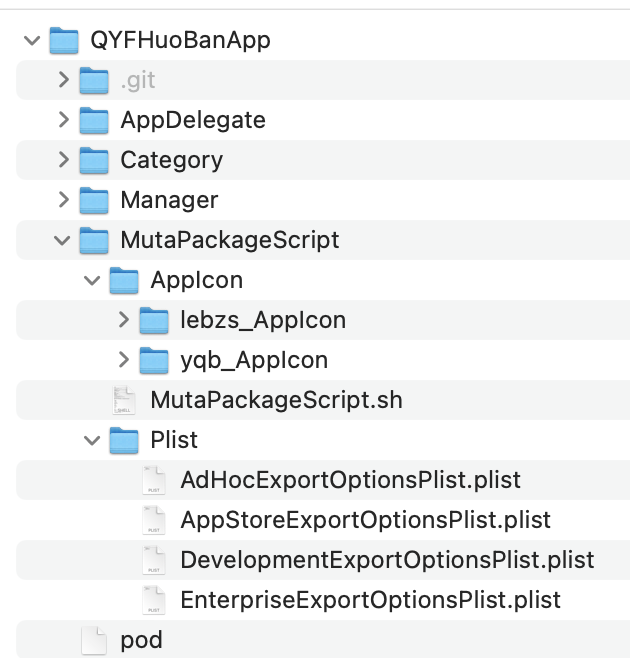
项目目录结构

pp97uJs.png

结构说明:

MutaPackageScript.sh : 为脚本文件 (批量时部分配置修改)

Plist:为打包4种打包模式 AdHoc、AppStore、Development、Enterprise (不需要动)

1
2
3
4
5
6
7
8
9
10
11
12
<?xml version="1.0" encoding="UTF-8"?>
<!DOCTYPE plist PUBLIC "-//Apple//DTD PLIST 1.0//EN" "http://www.apple.com/DTDs/PropertyList-1.0.dtd">
<plist version="1.0">
<dict>
<key>method</key>
<string>development</string>//这儿development、enterprise、ad-hoc、app-store四种
<key>signingStyle</key>
<string>automatic</string>
<key>compileBitcode</key>
<false/>
</dict>
</plist>

Read More

IOS项目单独脚本自动化打包

通过脚本自动化打包IOS项目

如果想要单个包批量打包请查看IOS脚本批量打包

一、Shell脚本

Shell 是一个用 C 语言编写的程序,它是用户使用 Linux 的桥梁。Shell 既是一种命令语言,又是一种程序设计语言。shell脚本基础学习

在终端输入man xcodebuild,可以看到Description里面有介绍用法。
xcodebuild指令文档学习

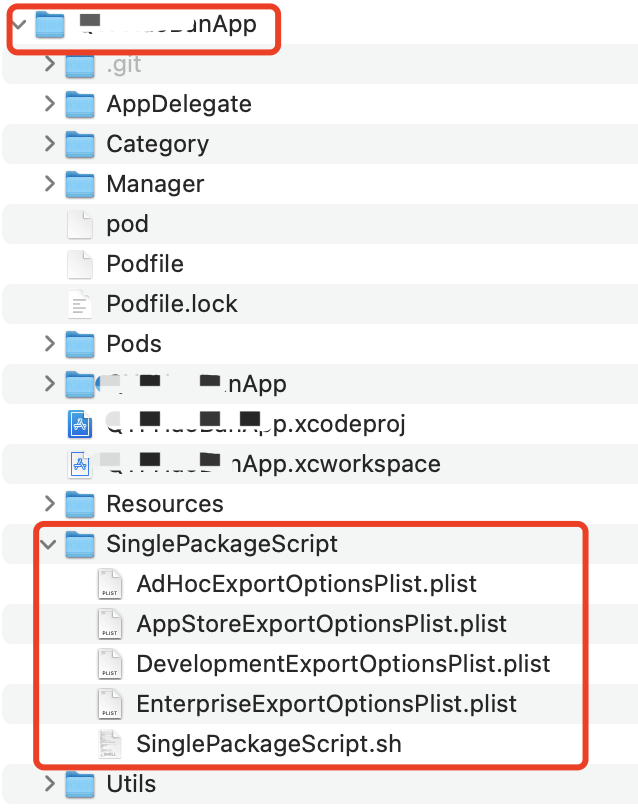
项目目录结构

pp9LgDP.png

结构说明:

SinglePackageScript.sh : 为脚本文件 (可不修改)

各个Plist:为打包4种打包模式 AdHoc、AppStore、Development、Enterprise (不需要动)

Read More

Hexo文章上传指令操作

Hexo 博客从安装到本地预览+线上部署完整教程

1
2
3
4
5
6
7
8
9
10
# 1. 清理缓存
hexo clean

# 2. 生成最新静态文件
hexo g
# 3. 临时访问
hexo s -p 3000 # 访问地址:http://localhost:3000

# 4. 推送部署到 GitHub(核心命令)
hexo d # 或 hexo deploy
1
2
3
4
5
6
7
8
9
10
11
本文详细记录 Hexo 博客的安装配置、本地预览及线上部署全流程,适用于 macOS(Apple 芯片)系统,Windows/Linux 可参考适配对应路径,新手可直接按步骤操作。

一、前置准备

1. 安装 Node.js
Hexo 基于 Node.js 开发,需先安装 Node.js(自带 npm 包管理器):
- 下载地址:[Node.js 官网](https://nodejs.org/)
- 安装要求:推荐下载 LTS 长期支持版(如 18.x 或 20.x),安装后自动配置环境变量
- 验证安装:终端执行以下命令,输出版本号即成功
node -v # 输出示例:v18.17.0
npm -v # 输出示例:9.6.7

1. 全局安装 Hexo 脚手架

终端执行以下命令,全局安装 Hexo 核心工具:

1
npm install -g hexo-cli

安装成功提示:

  • changed 53 packages in 686ms
    14 packages are looking for funding
      run `npm fund` for details
    
    1
    2
    3
    4
    5
    6
    7
    8
    9

    ### 2. 配置 zsh 环境变量(解决 "command not found: hexo")

    安装后若终端提示找不到 hexo 命令,需配置环境变量(macOS Apple 芯片专属路径):

    查看 npm 全局前缀路径(终端执行):

    ```bash
    npm config get prefix
  • 输出结果(Apple 芯片默认):/opt/homebrew

编辑 zsh 配置文件:

1
2
# 打开配置文件(无则自动创建)
touch ~/.zshrc && open ~/.zshrc

在文件末尾添加以下内容(直接复制):

1
export PATH="/opt/homebrew/bin:$PATH"

生效配置并验证:

1
2
3
4
5
# 让配置立即生效
source ~/.zshrc

# 验证 Hexo 是否安装成功(输出版本号即成功)
hexo -v
  • 成功输出示例:
1
2
3
hexo-cli: 4.3.0
node: 18.17.0
os: darwin arm64

三、Hexo 本地预览操作

1. 初始化 Hexo 博客(首次操作)

  1. 终端进入需存放博客的目录(如桌面):
1
cd ~/Desktop  # 示例:进入桌面

初始化博客文件夹(替换 my-hexo-blog 为自定义博客名):

1
hexo init my-hexo-blog

进入博客根目录:

1
cd my-hexo-blog

2. 本地预览核心命令(按顺序执行)

所有命令需在 博客根目录 执行:

(1)清理缓存(可选但推荐)

清除旧版静态文件和缓存,避免冲突:

1
hexo clean
  • 成功输出:INFO Deleted database. INFO Deleted public folder.

(2)生成静态文件

将 Markdown 文章、主题模板编译为 HTML/CSS/JS 静态文件(生成到 public 文件夹):

1
hexo g  # 全称 hexo generate,简写 g 更便捷
  • 成功输出:INFO Generated x pages(x 为生成的页面数量)

(3)启动本地服务器

启动内置服务器,实现本地预览:

1
hexo s  # 全称 hexo server,简写 s

成功输出:

1
2
INFO  Start processing
INFO Hexo is running at http://localhost:4000 . Press Ctrl+C to stop.

3. 本地预览访问

打开浏览器,输入地址 http://localhost:4000,即可看到 Hexo 默认博客页面。

  • 实时预览:修改文章、配置或主题后,刷新浏览器即可看到更新
  • 停止服务器:终端按 Ctrl + C 组合键

4. 实用补充指令

(1)指定端口启动(避免端口占用)

若 4000 端口被占用,可指定其他端口(如 3000):

1
hexo s -p 3000  # 访问地址:http://localhost:3000

(2)一键执行清理 + 生成 + 启动

无需分步输入,用 && 连接指令:

1
hexo clean && hexo g && hexo s

(3)调试模式启动(排查问题)

预览异常时,开启调试模式查看详细日志:

1
hexo s --debug

四、Hexo 线上部署(hexo d 命令使用)

hexo dhexo deploy 的简写,用于将本地静态文件推送到远程平台(如 GitHub Pages),实现线上访问。

1. 安装部署插件(必须)

在博客根目录执行,安装 Git 部署插件:

1
npm install hexo-deployer-git --save

2. 配置远程部署平台(以 GitHub Pages 为例)

(1)准备 GitHub 仓库

  1. 登录 GitHub,新建仓库,仓库名必须为:你的GitHub用户名.github.io(如 xxx.github.io
  2. 仓库页面点击「Code」,复制仓库 HTTPS/SSH 地址(如 https://github.com/xxx/xxx.github.io.git

(2)配置 Hexo 部署信息

  1. 打开博客根目录的 _config.yml 文件(Hexo 主配置文件):
1
open _config.yml

拉到文件末尾,找到或新增 deploy 节点,添加以下配置(替换为你的信息):

1
2
3
4
5
deploy:
type: git # 部署类型:Git
repo: https://github.com/你的GitHub用户名/你的GitHub用户名.github.io.git # 复制的仓库地址
branch: main # 部署分支(GitHub Pages 默认 main 分支)
message: "Hexo deploy: {{ now('YYYY-MM-DD HH:mm:ss') }}" # 自动添加部署时间(可选)
  • 注意:YAML 格式要求冒号后面必须加空格!

3. 执行部署命令

配置完成后,在博客根目录按以下顺序执行:

1
2
3
4
5
6
7
8
# 1. 清理缓存
hexo clean

# 2. 生成最新静态文件
hexo g

# 3. 推送部署到 GitHub(核心命令)
hexo d # 或 hexo deploy

部署成功标志

终端输出以下信息且无报错:

1
2
3
4
5
6
INFO  Deploying: git
INFO Clearing .deploy_git folder...
INFO Copying files from public folder...
INFO Commit with message: Hexo deploy: 2025-11-05 16:30:00
INFO Pushing to https://github.com/xxx/xxx.github.io.git
INFO Deploy done: git

4. 访问线上博客

部署成功后,等待 1-5 分钟,浏览器访问 https://你的GitHub用户名.github.io(如 https://xxx.github.io),即可看到线上博客。


五、常见问题排查

1. 终端提示 “command not found: hexo”

  • 原因:环境变量配置错误或未生效
  • 解决:重新执行 source ~/.zshrc,或检查 ~/.zshrc 中路径是否为 /opt/homebrew/bin

2. hexo d 报错 “No repository defined”

  • 原因:_config.ymldeploy 节点的 repo 地址未配置或格式错误
  • 解决:检查 repo 地址是否正确(含 .git 后缀),确保冒号后加空格

3. 部署成功后访问 404

  • 检查 GitHub 仓库名是否为 用户名.github.io(严格区分大小写)
  • 进入仓库「Settings → Pages」,确认部署分支为 main 且状态为「已启用」

4. 推送时权限不足

  • 方案 1:改用 SSH 地址部署(需提前配置 GitHub SSH 密钥)
  • 方案 2:HTTPS 地址部署时,输入 GitHub 个人访问令牌(替代密码),令牌需勾选 repo 权限

六、总结

1. 核心流程

安装 Node.js → 安装 Hexo → 配置环境变量 → 本地预览 → 线上部署

2. 常用命令速查

功能 命令
初始化博客 hexo init 博客名
清理缓存 hexo clean
生成静态文件 hexo g(全称 hexo generate
本地预览 hexo s(全称 hexo server
线上部署 hexo d(全称 hexo deploy
一键部署 hexo clean && hexo g && hexo d

说明:按本文步骤操作后,即可实现 Hexo 博客的本地开发预览和线上公开访问。如需部署到 Gitee Pages、Netlify 等其他平台,可参考对应平台的仓库配置规则修改 _config.yml 中的 deploy 节点。

plaintext

1
2
3
4
5
6
7
验证文件有效性
生成 `.md` 文件后,可通过以下方式确认:
1. 用 Typora、VS Code(安装 Markdown 插件)、Obsidian 等编辑器打开
2. 查看格式:标题层级、代码块高亮、表格、列表是否正常显示
3. 所有命令可直接复制使用,无需额外修改

按上面的方法操作,你会得到一个 **标准、可编辑、可分享** 的 `.md` 文档,完全满足下载使用的需求~

《叹平生》

烟花划过夜空
迷失了影踪
你却说那是逐行苍穹
愿来世可以化作星弓
守护你晨饮朝露夜伴晚风
化成高墙倔强黯然成伤
千载梦 万般空
百转柔肠 路在消亡
诗与行囊身寄他乡
容与鬓斑记忆犹长
天涯敢闯荆棘万方
想要理想还是追寻你的航向奔向远方
不知道被这棉被裹住身体会不会有时候感受不到温凉
不知道在黑暗的角落是否有陌生人倾泪悲伤
不知道在这更替的夜里是否又有人坦荡
心有万人肠 何来人间转辗一趟?

by:霜